iCloud is Like a Mirror
📱 Apple Photos (iCloud) is a great tool, but not a full solution for your photos.
Best for: Apple users who want simplicity
✅ Seamless syncing across devices
✅ Easy to use
❌ Limited control over originals
❌ Not a true backup (Apple explicitly says: You are responsible for backing up your data)
👉 It saves everything… including problems. Even if you never delete photos,
catalog corruption, sync errors, or account issues can affect everything
Mistakes replicate everywhere.
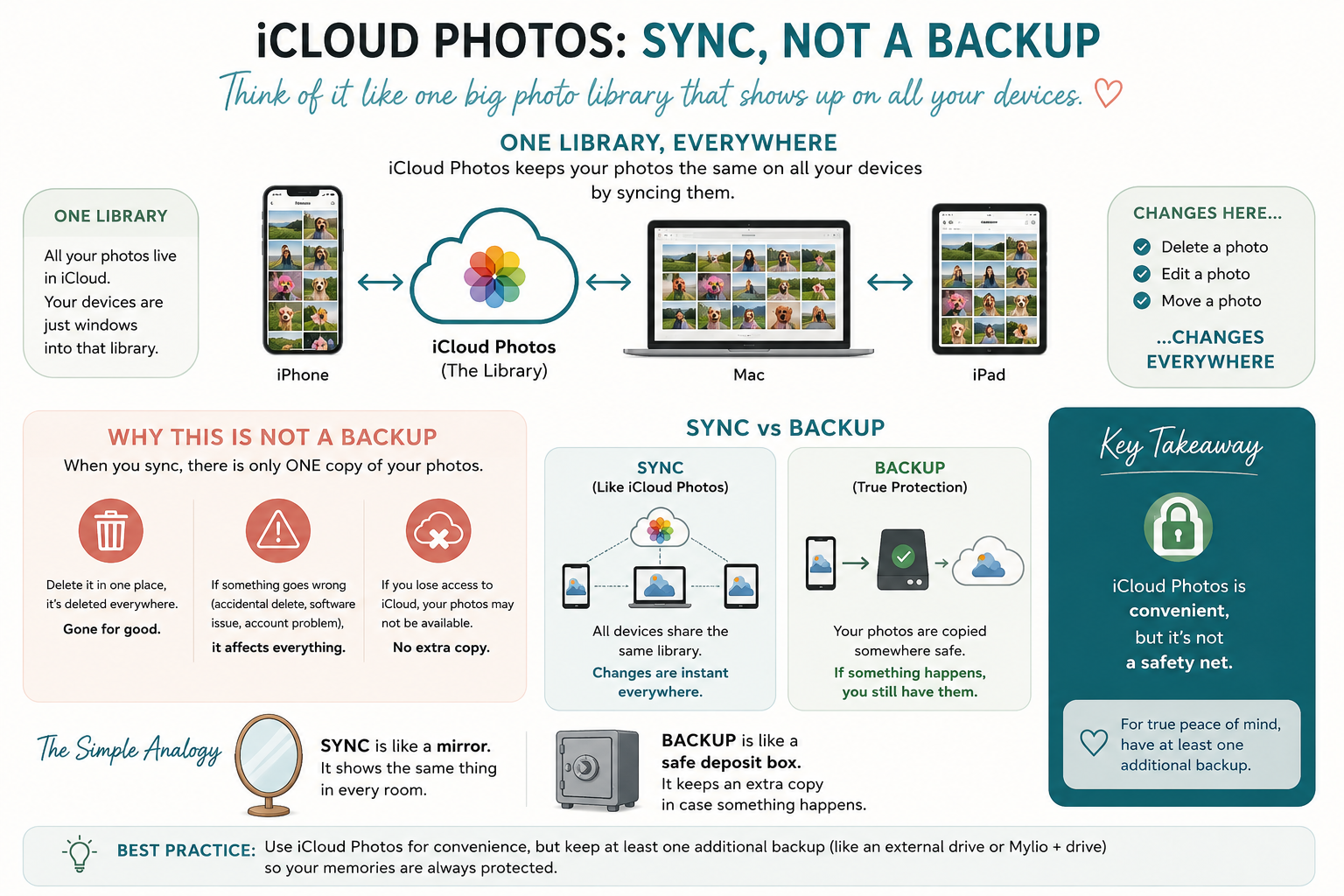
📵 If iCloud is unavailable, your originals are unavailable
With Optimize ON, your phone often does NOT have the full-resolution file and your photos are dependent on the cloud to function fully.
*No internet → can’t access full-res
*Slow connection → photos won’t load properly
⚠️ Storage or billing issues can interrupt access
From Apple’s terms: If payment fails or storage limits are hit…
--uploads can stop
--access can be restricted
--content could be deleted in extreme cases
Sync errors and “silent failures” may occur when storage is full, the internet is unstable, or devices are near capacity. These issues lead to incomplete uploads, and data loss.
Optimized photos are NOT usable as originals!!! This is huge—and rarely understood. The versions on your phone are lower-quality placeholders.
With iCloud Optimize turned on, your phone is like a photo album with tiny previews…and the real photos live in a storage unit you access through the internet. If something goes wrong with that storage unit, your phone does not have the real photos.
If the originals are gone from iCloud, you cannot recover them from the phone.
>>>Turning off iCloud can remove photos from your phone<<<
If Optimize is ON and you disconnect from iCloud, the optimized photos may be removed from the device.
👉 People assume, “I’ll just turn this off and keep what’s on my phone", but the reality is that you may instantly lose local access to your memories.
⚠️ Apple does not guarantee zero data loss⚠️
From their own terms, there is no guarantee against loss, corruption, or removal. That’s standard for cloud services and important to understand.
The bottom line is that even if you never delete a photo:
*You don’t control where the originals live
*You don’t have an independent backup
*You are dependent on a system working perfectly
iCloud is a great syncing tool—but it should only be a part of your digital asset system.
For those who wish to stay within the Apple ecosystem, there is a backup option built into your laptop or desktop through Time Machine.
Time Machine creates a separate backup copy of your files. It is like having a second copy of your entire computer sitting on an external drive.
Your photos (and everything else) are copied to an external drive
That copy is independent of your Mac
👉 If something happens to your computer, your files still exist
✔️ It keeps versions over time
Hourly, daily, weekly snapshots
You can go back to:
before you deleted something
before a mistake
before corruption
👉 This is something sync systems cannot do
✔️ It protects against common disasters
Computer crashes
Accidental deletion
File corruption
Theft (ehhh, maybe, if drive is separate)
⚠️ The caveat: It’s only a backup if the drive is connected and working
Risks:
Drive unplugged → no recent backup
Drive fails → backup is gone
Same location (fire, flood, theft) → both copies lost
If your Time Machine drive is sitting right next to your computer, your files are still at risk of loss.
Where Time Machine fits in a complete system:
🥇 Great for:
Automatic, hands-off backup
Protecting against mistakes
Local control (no cloud required)
❌ Not enough by itself:
Not offsite
Not easily accessible from phone
Not a sharing system
👉 The gold standard is the 3-2-1 backup strategy:
3 copies of your photos
2 different types of storage
1 offsite (cloud or separate location)
In the coming days, I will be writing more about the other options you have for a full backup strategy, including what options are available for Windows users.